Two families of elements exist in PYS. Display elements & Config elements.
- Display elements are the ones you use to put content in your scenes.
- Meta elements are the ones that enable the customization and the easy management of complex content.
# Common features
Each element from both Display & Meta elements are defined by:
- A name
- Categories: you can assign categories to all your elements and scenes to easily sort and filter them.
# Basic Display elements
# Text
Quite basic. Display some custom text by choosing the font, size, alignment and color. You can also set a text box width a width and height to give the text a proper alignement, and a background color for it with custom opacity. 360° rotation as well. In & out animations also.
# Picture
Even more basic. Display some .png, .jpeg, whatever, picture files. Define a max size in pixels if needed (it will then be constrained and center in a square box of the max size). Apply some rotation if you like. Animate in & out.
# Video
Display some short and light logo loops. Don’t be greedy as it transits to your broadcasting software through the internet. We recommend you work with .webm format. Rotate it, loop it or not, set a max size (same as for picture). Animate in & out.
# Timer
All the features of a text element but to display a timer instead of your own text. You can make it countdown to a set date and time.
# HTML
Embed HTML stuff. With CSS. Receive API info! So powerful. Display of the API json received payload can be setup with the mustache.js formatting (opens new window) by prefixing the fields with data.
# Tweet Feed
Let's get the audience involved! With the TweetFeed element, you can display tweets right in a scene.
To make it easy, the process of displaying tweets is split in two steps.
- First, you'll need to setup the
TweetFeedelement to decide how the tweets will look like. We have prepared some presets but you can also fully customize the display the way you want! - Second, when you add your new
TweedFeedelement on a scene, you'll see that the quickedit action is a button named "Update tweet selection". With this button you can select the tweets that will actually be displayed on stream.
Also note that if you want to have two TweetFeed elements displaying the same tweets in a different manner, then you can link them in the sync field.
# Advanced Display elements
Ooh, it’s getting interesting...
# Picker
Create a dropdown menu that will enable you to display one element in a list of selected elements. How do you select those?
- First, select the type of element you want to display (among the text, picture, video & timer elements). One picker element can only support one type of elements. If you want more, you’re greedy. Are you though?
- Filter it by name (optionnal)
- Filter by category (optionnal)
- Filter by name AND category! (optionnal)
- Insane!
Now, when added in a scene you will now see a dropdown menu that will let you choose between all the possible elements that fit your criterias. Some use case for that:
- Select a picture background (Bo5, Bo7)
- Select a specific text among many
- ...
There is also a sync field to let you easily synchronize a choice between multiple pickers. We will see that again below with the Template Placer element.
# Template Placer
Because we like OP stuff, we've created Template Placers elements that will enable you to display a combination of Basic Display elements. One Text element and One Picture element for example. Or 10 Text elements and 5 Picture elements. Whatever. You name it.
Template Placers enable the display of Template Instances. They let you choose the way you will display each element that is composing the Template Instance you select (more about those below).
Template Placers’ features are:
- Animation & rotation, as usual.
- A
Templateassignment: basically, you tell PYS what combination of elements thisTemplate Placerswill display. - A
Template Instancethat you will display. When placed on a scene, thisTemplate Instancechoice will be easy to change through a dropdown. - You can filter those choices by Categories, so you can only display
Template Instancesassigned within this category. - Coordinates for each element that are included in the
Template Instance. - Display settings for each element as well (fonts, sizes, etc).
- Basically, the only thing you can’t do over the elements is change their content, because it’s defined by the
Template Instanceelement select in the choice field. - A
syncfield let you synchronize a choice selection between multipleTemplate Placerselements. For example, on one scene you could display a team with a name + a logo and on another scene you could have just the logo. To do so, create twoTemplate Placersshowing the right fields and sync them together. Now, when the choice will change for one, the other one will also be updated automagically!
# Meta elements
# Template
Templates are the structure of Template Instances. They don’t carry any content, but only let you select which elements will compose a Template Instance and, therefore, will be displayed by a Template Placer. Got it?
- Select a name,
- Select an optional category,
- Create element fields, with a type (text, picture, video, timer) and a label for this field.
Once a Template is created, you can’t edit its structure. You can only change field label. Don’t worry, you can create as many Templates as you like, but don’t make it too messy please.
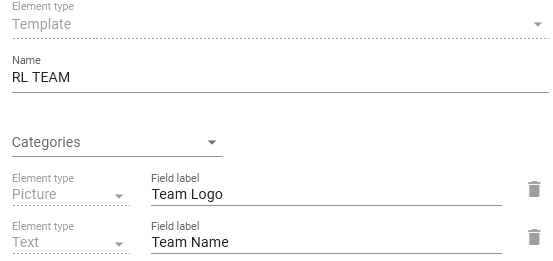
Example - A basic team Template:
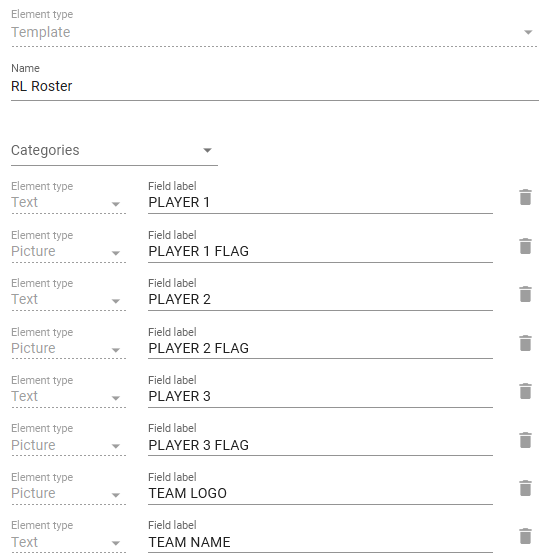
Example - A complex team template:
# Template Instance
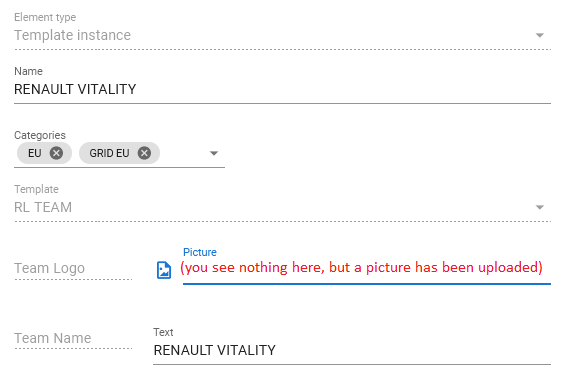
These elements are created from Templates. They will carry content according to the structure defined in a Template.
A Template Instance of a Template that contains one text field and one picture field will carry one text content and one picture file.
Example - a basic team Template Instance:
Example - a complex team Template Instance:
Soon
To display a Template Instance in a scene, you need to select it through a Template Placer
To sum it up, Templates define the structure, Template Instance are the content and Template Placers are the blueprint. Will all three together you can build complex element to update many details at once!
# Extra
# Font
Maybe your designer gave you some directives about displaying your text with some custom fonts? If yes, upload them here!
Now, any elements that can display text (like Text Element or Timer Element for example) will be able to be customized with this font.
# Animations
Soon
# Category
This page is a summary of all the categories your account use and how many [Meta]Elements are in each categories.